See also .. File Options, FTP File List Select
Menu Item - Internet / Web / FileOptions
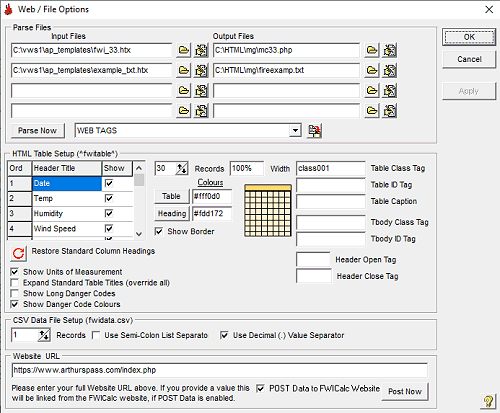
FWI CALCULATOR can produce a web style (HTML) "table" containing a similar appearance to the chart on the Main Window.
Note: The table created can be given a STYLE ID, selectable in the ID Tag field (eg. id="style001") . This allows you to create a <style> tag in the <head> section of your parse file that will operate solely on this table.
eg.<style type="text/css">
#style001 {font-size: 10pt;}
</style>
HTML TABLE SETUP OPTIONS
A HTML table can be included in your parsed files (^fwitable^) which contains the lastest records from the database.
Table Headings: You can edit the text used as the column title (limit is 70 characters and you can use HTML tags) and choose which columns to display by checking the checkboxes for the required Column Heading. The order the columns also appear can be changed by clicking on the Ord. column number and dragging it to its new location.
 Restore Standard Column Headings: Clicking this button will change all Column Titles to their standard presentation (ie. no user title text).
Records: Select maximum number of records to show in table (1-200).
Width: Enter either number of pixels wide (eg. 750) or a percentage value of web page width (eg. 100%).
Table Class Tag: Enter a Cascading Style Sheet (CSS) class (eg. class001) that can be used to format the table. Maximum of 30 characters. Do not include period (.).
Table ID Tag: Enter a ID(eg. id001) that can be used by JavaScript etc to access the table. Maximum of 30 characters. Do not include period (.).
Table Caption: Enter text that will appear in a caption above the table. Text formatting HTML tags are permitted.
Tbody Class Tag: Enter a Cascading Style Sheet (CSS) class (eg. class002) that can be used to format the body of the table. Maximum of 30 characters. Do not include period (.).
Tbody ID Tag: Enter a ID(eg. id002) that can be used by JavaScript etc to access the body of the table. Maximum of 30 characters. Do not include period (.).
Heading Open Tag: If you want to format the title text you can place the opening HTML tag here eg.