FWI Setup
Menu Item - Edit / FWI Setup
Station and Fire Weather Settings
- This dialog allows you to set up everything necessary to get FWI Calculator working with your weather station data in 4 steps.
- You can Check your settings at anytime. The 4 steps will turn a "green" colour when valid settings are chosen. Pink/Red indicates invalid settings - errors or suggestions will be shown in the text box (bottom right). Light blue indicates the section being disabled.
- Initial Values in the 2. INITIAL VALUES section must be chosen when you first install FWI Calculator (Replace), this will also create a empty FWI database file (default.fwi).
- The 3. ENVIRONMENT section is probably the most complex. Some field work may be required to determine such parameters as Grass Curing and Fuel Loading.
- Unchecking the Parse Enabled in the 4. WX STATION DATA FILE section will disable this section (no parsing of weather station data will occur. FWI Calculator will be manual input only).
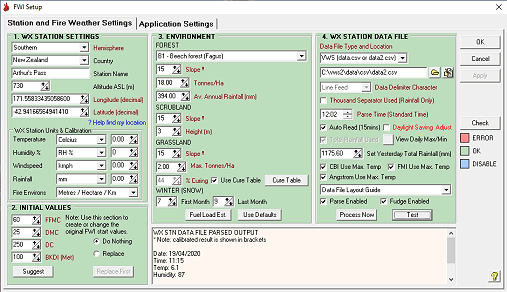
1. STATION SETTINGS
Hemisphere - Select Northern or Southern hemispheres. This is a compulsory setting. It is used to determine some calibration factors in some FWI indices, and is used as a default if the latitude & longitude values create errors.
Country - Select your country from the drop-down list.
Station Name - Choose a station name (eg. Arthur's Pass). This is used in printed reports and headings.
Height ASL - Enter the height of your weather station above sea level (feet or metres).
Longitude - Enter in decimal form (eg. 171.5583) the global longitude of your station location. This is a compulsory entry, it directly effects the way some indices are calculated. Remember that eastwards from the Prime Meridian (0º at Greenwich, England) will be positive to +180ºand westwards negative to -180º.
Latitude - Enter in decimal form (eg. -45.94166) the global latitude of your station location. Note: Northern hemisphere latitudes are positive whilst Southern hemisphere latitudes should be entered as negatives.This is a compulsory entry, it directly effects the way some indices are calculated.
WX Station Units & Calibration
Use the selection boxes to select the units your station provides data in. These directly effect the way ALL FWI indices are calculated as they go through a conversion process. They are also used to display units on graphs & reports (Note: RH Decimal will be converted to RH %).
Calibration corrections can be chosen for Temperature,Humidity, Windspeed & Rainfall. These corrections will be applied to all input data before processing - use with caution!.
2. INITIAL VALUES
FWI CALCULATOR requires a minimum of previous day FFMC, DMC, DC & BKDI to be able to "on calculate" all subsequent data.
To obtain these startup values it is best you track down a FWI or FDI weather station in your locality that is typically effected by similar weather patterns. On entering these values it is best you wait 10-15 days before the calculated indices for your station "settle down" and can be relied upon.
If you cannot obtain local FWI values it is best you enter the following values...
FFMC: 60
DMC: 25 Click the Suggest button and these values will be inserted!
DC: 250
BKDI: 100mm or 395in (depending whether you are using millimetres or inches as your rainfall units)
these values will initiate your station with a MODERATE fire risk value. On entering these values it is best you wait 15-20 days before the calculated indices for your station "settle down" and can be relied upon.
It doesn't matter at this stage which of the other options are checked, however I will describe their function here...
Do Nothing: if this is checked nothing will change.
Replace: if this is checked, when you click the "Replace First" button the Initialisation Data found at the beginning of the database file will be replaced and ALL subsequent data will be recalculated to the end of the file.
IMPORTANT: You cannot delete these above entries, only change them.
Replace First- Click this button to write or overwrite your Initial Values to the database.
3. ENVIRONMENT
Enter data specific to the fire landscape in the Environment section. This data is used specifically to calculate the fire intensity (FI), Drought Factor (DF) and Fire Danger Index (FDI) values, and therefore Danger Codes specific to forest, scrubland and grassland environments. If you can't find a forest type appropriate select "Conifer plantation".
The FOREST section requires a fuel loading value. This can be in Tons/Acre or Tonnes/Hectare depending on your units settings. This is a difficult calculation, if you are unsure set the value to 10T/ha (4.4T/Acre). Plantation and dense Eucalypt forest could be set at 20-25T/ha (9-11 Ton/Acre). Average Annual Rainfall estimate can be entered in inches or millimetres.
The GRASSLAND section requires a Maximum Fuel Loading value. This can be in Tons/Acre or Tonnes/Hectare depending on your units settings. This is a difficult calculation, if you are unsure set the value to 3T/Ha (1.3 T/Acre). Set to the Maximum fuel loading present during a year, FWICalc will then estimate the seasonal variation in this loading. For a visual explanation of estimation visit http://www.arthurspass.com/fwicalc/PDF/PhotoGuideForGrassFuelLoads.pdf.

Fuel Load Estimator : Click this button to open a Fuel Load Estimation dialog. Select whether you want Metric (cm) or Imperial (inches) inputs. Select the Vegetation Type (eg. Grassland, Shrub Type, Forest Type). Choose a Groundcover Height value (this does not include forest height, only fine fuels such as duff, grasses & shrub). Choose the Density of the Groundcover, this is expressed as a percentage of the area, Click the Calculate Button. Values for Fuel Loading will be displayed in Tonnes/Hectare and Tons/Acre.
Please note that the values entered here are used as constants across ALL new records in the fwi data file. To obtain Application defaults click the "Use Defaults" button (initially these are generic presets, but default to your values after setup).
WINTER SNOW - If you receive permanent winter ground snow at your weather station this effects all FWI indices (generally they are not of any value); you may choose the Start & Last months of this occurrence here. Leaving these settings as zero indicates no period of winter ground snow is present. Setting these values will cause FWI Calculator to change Danger Codes to NA (Not Available) and on the 1st of the month following this period insert new initial (post winter) start values for FFMC, DMC & DC.
4. WX STATION DATA FILE
Data File: This file will be created by some other third party software that interfaces directly with a weather station (eg. WeatherLink, Cumulus, VWS, Weather Display, WeatherView32, Wetterstation, MeteoHub etc). Most weather software available on the market today comes with this capability (in most cases it will parse another file containing specific "web tags" particular to that software to create a "Custom File" that can be read by FWICalc).
This custom file must be in ascii/text format. All data MUST be separated by a "delimiting character or line feed", the type used is selectable in the "Data Delimiter Character" drop down menu.
If you are running VWS or Cumulus software, you can choose to use the data.csv / data2.csv files updated by VWS, or the realtime.txt file created by Cumulus,
Note: VWS data.csv contains raw/native data from your weather station. Best to use data2.csv that contains converted data in the units (metric or imperial) as selected by the user in VWS!
You need to tell FWICalc what type of input file you are using (Custom Data / Web File, VWS or Cumulus). If you created the file yourself to be parsed by your weather station software (eg. WeatherLink, WeatherDisplay, WeatherView, MeteoHub), or the file is available via online (http, https, www), choose Custom Data / Web File, and select the output file created by your weather station data. Note: FWICalc can parse files held remotely, MeteoHub users can only use this option to share the file produced. The filename must be a fully qualified URL beginning with http, https or www. A broadband connection is required to use this facility.
Warning: Some weather station software includes alpha-characters and punctuation in its output (eg. ° etc), make sure the delimiting character you choose to separate values does not appear in the normal output values, otherwise parsing errors will occur (out of range errors)!
The data must be in the following order... Date, Temperature, Humidity, Windspeed and Rainfall (24hr or Total Annual Rainfall) . The file can be named anything. Browse to it with the  button. View/Edit this file with the
  button.
Using 24hr Rainfall (semi-colon delimiter)...
- VWS: ^vst142^;^vxv007^;^vxv005^;^vxv002^;^vxv123^
>- Cumulus: <#date>;<#temp>;<#hum>;<#wlatest>;<#r24hour>
- Weather Display: %date%;%temp%;%hum%;%avgspd%;%totalrainlast24hours%
- Wetterstation (de): %ws_date%;%curval[0]%;%curval[18];%avg10minwind%;%rain24h%
>- MeteoHub: [actual_date0_day_local]/[actual_date0_month_local]/[actual_date0_year_local];[actual_th0_temp_c];actual_th0_hum_rel];[last15m_wind0_speed_kmh];[last24h_rain0_total_mm]
Using Annual Rainfall (semi-colon delimiter)...
- WeatherLink (Davis):<!--date-->;<!--outsideTemp-->;<!--outsideHumidity-->;<!--wind10Avg-->;<!--totalRain-->
- Cumulus: <#date>;<#temp>;<#hum>;<#wlatest>;<#ryear>
- VWS: ^vst142^;^vxv007^;^vxv005^;^vxv002^;^vxv009^
- Weather Display: %date%;%temp%;%hum%;%avgspd%;%yearrn%
- WeatherView32: wvdatewv;wvcur01wv;wvcur13wv;wvcur18wv;wvcrtdwv
- Wetterstation (de): %ws_date%;%curval[0]%;%curval[18];%avg10minwind%;%rainyear%
- MeteoHub: [actual_date0_day_local]/[actual_date0_month_local]/[actual_date0_year_local];[actual_th0_temp_c];actual_th0_hum_rel];[last15m_wind0_speed_kmh];[year1_rain0_total_mm]
These examples use the semi-colon as the delimiter. You could use any separator in the FWI Calc "Data Delimiter Character" list as long as it doesn't appear in a Web Tag or is used as your decimal separator. If using Total Annual Rainfall, remember to insert yesterday's total annual rainfall in the "Set Yesterday Total Rain" box, and check the "Total Rainfall Used" box!
Dates cause the biggest issues - FWI Calculator is looking for the "Short Date Format" ie. mm/dd/yy or dd/mm/yy depending on your countries date format (the year may be 4 digits; the date separator can be / or - or .) - it tries it's darnest to read a viable date. Some weather programs provide web tags for day, month & year, so you could create a date tag that consistently works eg. Cumulus: <#month>/<#day>/<#year>. If you can't get it to work place the tag <fwidate> or ^fwidate^ in place of your programs date entry, FWI Calc will automatically insert the date (todays) at the time of parsing.
Thousand Separator Used (Rainfall Only): Some weather software packages may insert a thousand separator character into numbers (eg. 1,000 or 1.000). This will only affect rainfall. If your data file does include thousand separators, check this box to avoid errors when the file is parsed - DO NOT CHECK THIS BOX OTHERWISE!
Parse Time: By protocol this should be somewhere around 12:00hrs (noon/midday) daily (Standard Time). It should be timed to coincide with the updating of the Data File by your weather station. ie. If your weather station software updates the Data file at 12:00hrs daily you should set the "Parse at time" to 12:02hrs. FTP could then be setup to upload your parsed file/s to your server at 12:05hrs. FWI CALCULATOR uses the system clock as its basis. If you have any "Graphs" saved, all of these will be renewed at this time to the "graphs" folder. Note: some weather station software has its own "clock", this can cause problems in FWICalc should these clocks drift from the system clock time causing parses to miss the new data. Most of this software has an option to synchronise it with the system (computer) clock - do this!
Auto Read (15mins): FWICalc can read the Data File every 15 minutes. This is only a viable option if your weather station software also updates the data file with current data on a regular basis. FWICalc can then set maximum temperature (humidity & Windspeed) values for use in other indexes (CBI, FMI, Angstrom) if required.
DLS Adjust: FWICalc requires the weather data to be analysed at the same time every day (eg. midday), however if Daylight Saving is enabled on that computer then the time will need to be shifted by one hour (eg. 1300hrs). Checking this box will force the parsing of the data file an hour later than is set in the "Parse Time" input. This setting is only viable if your weather station software also updates the data file regularly. Note: The Checkbox text will be green if DLS is detected, or red if not (ie.Standard Time or detection fails).
Set yesterday total rain: Must be set if "Total rainfall used" is checked for the very first data record. It is the total rainfall reading for the same time on the previous day. Do not change this parameter again once the automatic system is enabled, FWI CALCULATOR will automatically update it.
Total rainfall used: Some weather stations cannot report rainfall in the previous 24hrs as is required by FWI CALCULATOR. Checking this box will report to FWI CALCULATOR that the incoming rainfall reading is "total rainfall" to that point in time. If this is going to be the case, you must for the very first data record supply the "total rainfall" reading for the same time on the previous day.
NOTE: FWICalc will read the Weather Data File every 15 minutes after the initial reading (Parse Time). If the temperature increases these values will be stored as Peak values. Humidity & wind speed will be recorded at this Peak time. Peak values will be used to recalculate FFDI & GFDI. FWI values cannot use Peak values as these indexes are designed around a midday reading.
CBI Use Max: CBI values will be recalculated using Peak Daily values.
FMI Use Max: FMI values will be recalculated using Peak Daily values.
Angstrom Use Max: Angstrom values will be recalculated using Peak Daily values.
Parse enabled: When checked, and the application is running parse and calculate operations will automatically occur at the prescribed time. The "Parse Enabled" checkbox on the Main Window will colour red for one minute when it is parsing files.
Fudge Enabled: Use this feature with caution. Should automated uploads from a weather station data file stop for some reason (eg. wx stn software crash) enabling this feature allows FWI Calculator to automatically insert correctly dated data fields that carry on the last known FFMC, DMC & DC values. In the past FWI Calculator just stopped and that was that, which I have discovered to be a real agony. With Fudge enabled FWI Calculator will continue inserting these dummy fields until a legitimate weather station input file becomes available (eg. your wx stn software is rebooted). The obvious caution is if you don't notice it, it could continue for some time (ever). To enable you to find and correct these "fudged" records quickly Choose Display/Fudged Records on the menu bar, only "fudged" records will be shown. You may edit these as normal to insert the correct data for that day/days. If there are far too many records to edit you may wish to insert new Initialisation Values at the end of the record file, or just let FWI Calculator progress with the new weather station data (DC will be most effected value).
Process Now: Clicking this button will process the current data file. It will overwrite any existing data for that date. If you use Total Rainfall make sure correct values for Total Rainfall are "Applied" before clicking this button. Use with caution!
Test: Clicking this button will test the delimiting structure of the current data file. If the file is held online, FWICalc will attempt to download it and save its contents to a temporary file. If it is successful you should see your data appear correctly against the various fields in the memo box (bottom right). This button uses the delimiting character selected in the drop down menu. Once you find something that works click the Apply button to save the selection. Note: the software will remove leading delimiter characters & double delimiter characters.
To save your settings click the OK button.
Application Settings
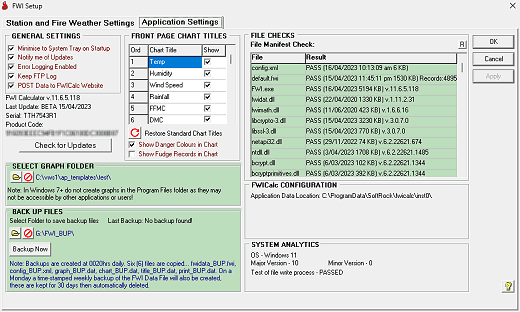
GENERAL SETTINGS
Select Minimise to System Tray on Startup if you want FWI Calculator to minimise to the System Tray area (lower right side of screen) on startup.
Select Notify me of Updates if you want FWICalc to check for updates. Generally this will occur around 1600hrs daily and you will get a notification if updates are available.
Select whether Error Logging Enabled is active or not (very useful if you are getting error messages from application). Attach FWI.error.log file to a email when notifying SoftRock of errors experienced.
Select whether to Keep FTP Log is enabled. This creates a standard log of FTP transactions. A verbose technical log is always produced.
Select whether POST Data to FWICalc Website is enabled. This will send a small data file to the FWICalc Website containing all your daily fire weather indices. It will send your Station Name & Location Data (Country, Hemisphere, Latitude, Longitude, Height). This will be entered into a online database each day; the most current daily record will overwrite the previous daily record. Visit the FWICalc website to view this data in maps or tabular form.
FRONT PAGE CHART TITLES
Select what Data Columns you want displayed on the main window chart by checking/unchecking the boxes as required. You may also drag & drop the order of the columns by clicking on the Ord. column and dragging it. Note: The Date field cannot be changed or deselected as this is the primary key for the editing functions! Column Titles can be edited by clicking on them. To return the column headings to their defaults click the  button.
Select whether you want Fire Danger Colours to be displayed in the main window chart (these will be associated with columns displaying danger codes, and the colours will be those chosen by the user).
Select whether you want the Fudge Records shown in the Chart (Default = False).
SELECT GRAPH FOLDER
Choose the folder where you would like graphs to be created. If you don't choose a folder, graphs will be created into the Application Data folder for FWICalc. You cannot use the folder where the application is installed.
BACK UP FILES
Choose the folder where you would like the six backup data files to be saved. Preferably backup your files to a different drive. The automatic save happens at 0020hrs daily. You can manually create the files by clicking the Backup Now button. On a Monday a time-stamped copy of the FWI Data File will also be created (fwidata0_YYYYMMDD.fwb), these will be automatically deleted after 30 days.
FILE CHECKS
A set of checks will be done on all the critical files necessary for stable running of FWI CALCULATOR. The results will be displayed here.
The main application data files (parse.dat, chart.dat, title.dat, print.dat) will auto-create if they don't exist. They can also be rebuilt individually if you are experiencing issues. Click on the small "R" button, this will open a hidden set of checkboxes where you can choose which files to completely rebuild. Rebuilding these files will reset any settings contained within them to default values eg. Title headings & order etc.
1) parse.dat - holds the complete series of webtags available to the application. It does not contain any user settings.
2) chart.dat - this controls the titles and data displayed in the table on the Main Window. It does hold user settings for title text, order shown, and what columns are shown.
3) title.dat - this controls the titles and data displayed in HTML tables created by the application. It does hold user settings for title text, order shown, and what columns are shown.
4) print.dat - this controls the titles and data displayed in printed tables created by the application. It does hold user settings for title text, order shown, and what columns are shown.
SAVING YOUR SETTINGS
To save your settings click the OK button.