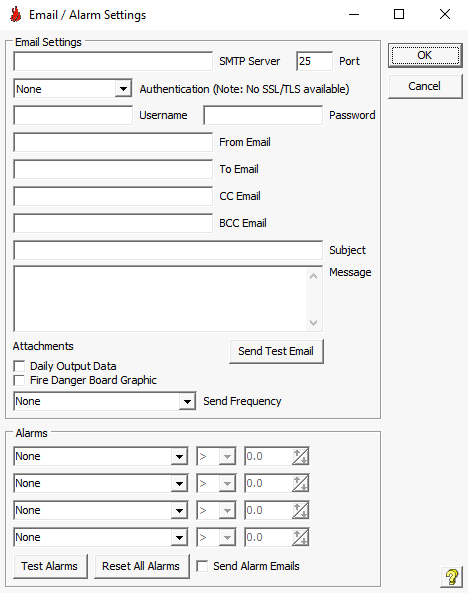
Menu Item - Internet / Email/Alarm Settings
FWICalc can send daily data, or alarm conditions as Emails.
EMAIL SETTINGS
SMTP Server: (Required) Enter your ISP SMTP server name eg. smtp.myserver.co.nz
Port: (default=25) If you are using a SSL server you may need port 465.
Authentication: Choose the method of logging in. "None" does not require Username or Password. Many SMTP servers will allow usage without login if it determines your IP address is one of its own.
Username & Password: Your login credentials if required.
From Email: (Required Field) Enter the email address that will identify the sender.
To Email: Enter an email address to send to.
CC Email: Enter an email address to send copy to.
BCC Email: Enter an email address to send blind copy to.
Subject: Enter text that will appear as email subject.
Message: Enter message text that will lead any following data or attachments. (eg. Weather Station Name and Location. This is an automated email, please do not reply.)
Attach Daily Output Data: Check this box if you want to include all daily data inline.
Attach Fire Danger Board Graphic: Check if you want the Fire danger Board (if available) attached to this email.
Send Frequency: Choose how often you want the emails sent. (Daily after standard update [12:00hrs], Daily after any auto update [this could be every 15 minutes after standard update if temperature continues to increase], 12:00hrs - 20:00hrs [Daily on preselected hour only]).
Test Email: Clicking this button should send a test email.
ALARMS
Four (4) alarms can be set. Choosing "None" makes a alarm inactive. Choose a Condition to meet (>,<,=,>=,<=). Choose a Value to test against. Note: "Fire Cross-Over" does not require Condition or Value, as it it tests temperature against humidity.
When an alarm is active a colour square appears to the right of the alarm. Green means the alarm is not triggered, Red means it is triggered. Clicking on these colour squares will toggle the alarm.
Test Alarms: Clicking this button will test the alarms against the current data. Note: if the current days data is not yet available (not midday yet) no alarms will activate.
Reset All Alarms: Clicking this button will reset ALL active alarms to Off.
Send Alarm Emails: Checking this box will send triggered alarm information as a email (any new alarm will send a email) , and include all triggered alarm information in any other email sent.
.
To save your settings click the OK button.